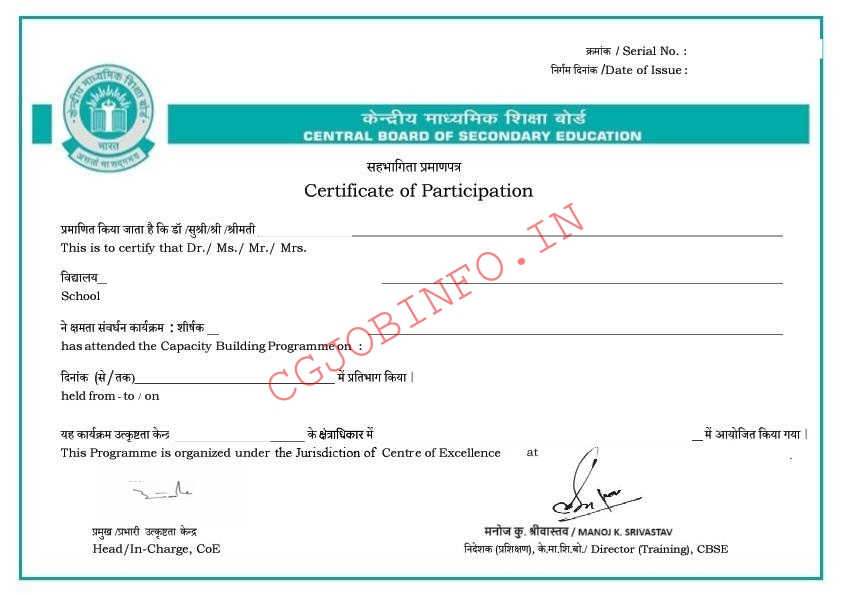
 Step-by-Step Guide to Download CBSE CBP Certificate
Step 1: Go to CBSE Training Portal
- Open your browser and visit:
 https://cbseit.in/cbse/training/
Step 2: Login
- Click on “Login As-Individual Participant”.
- Enter your registered Email ID and Password.
- Click Login.
 If you forgot your password, use the “Forgot Password” link to reset it via email.
Step 3: Go to “My Account (In Menu)” Section
- After login, look at the top menu.
- Click on “My Accouns” Then “Certificate for OFFLINE CBP”.
Step 4: Select the Training/CBP Programme
- Select Programme Category
- Select Registered Training Schduled
- Select Ref. ID.
Step 5: Download Certificate
- You’ll see a “Download” button.
- Click on it.
- The certificate will open in PDF format.
 Tips:
Tips:
- Use a laptop/desktop for best experience.
- Make sure your browser allows pop-ups (some certificates open in a new tab).
- Ensure the training was completed and feedback (if any) was submitted, as some certificates are released only after that.
If your certificate is not available, make sure:
- You attended the training with your registered email.
- The training is over and feedback submitted.
- Contact the Host of CBP School for help if required, they may guide you for the same.
You use the “Forgot Password” link to reset it via email.
Step 1: Enter You Id As OASIS or CBSE ID-
- Enter the User Id as OS_(YOUR OASIS ID or CBSE ID).
- Enter your Email which is registered in school or in OASIS portal (enquire in School for the registered email).
Step 2: Enter the OTP received in Email-
- Enter the OTP received in you email.
- Click to Proceed or Submit.
Step 3: Create New Password-
- Create new password and reenter the password.
- Click on Change password.
Repeat the above process for Individual Login to Download the certificate.